Bank Reconciliation Automation Copilot Series - Part 1: Data Structure and Preparation
Introduction
Bank reconciliation is the cornerstone of treasury operations, ensuring that your company’s financial records match your bank’s records. Without direct bank connections through SWIFT or APIs, this process can be manual, time-consuming, and prone to errors. This guide will help you build your own bank reconciliation automation solution without requiring coding knowledge or IT department support.
Understanding the Challenge
A typical bank reconciliation process involves comparing:
- Bank statements - transactions reported by your bank
- ERP/accounting system records - transactions recorded in your internal systems
- Outstanding items - transactions in process but not yet reflected in one of the systems
The complexity increases with:
- Multiple bank accounts across different currencies
- Different transaction types (payments, collections, fees, interest)
- Various formats of bank statements (CSV, Excel, PDF)
- Inconsistent transaction descriptions
- Value date vs. booking date differences
Setting Up the Data Structure
Step 1: Standardizing Bank Statement Formats
First, we need to create a standardized template for bank data regardless of source. You’ll map your bank’s specific formats to this template.
Standard Bank Transaction Template:
| Field | Description | Example |
|---|---|---|
| Transaction ID | Unique identifier | TR98765432 |
| Account Number | Bank account | 123456789 |
| Booking Date | Date the bank recorded the transaction | 2025-03-01 |
| Value Date | Date the transaction affected your interest bearing balance | 2025-03-02 |
| Description | Transaction narrative | INV/2025/03/1234 PAYMENT |
| Reference | Additional reference data | Customer ID 12345 |
| Debit Amount | Money out, in account currency | 10,000.00 |
| Credit Amount | Money in, in account currency | 0.00 |
| Currency | Account currency | USD |
| Balance | Running balance after the transaction | 25,000.00 |
| Transaction Type | Category of transaction | PAYMENT |
| Status | Reconciliation status | UNMATCHED |
Step 2: Creating the Mapping Tool
Since different banks provide statements in various formats, we need a mapping tool to standardize the data. We’ll create this in Excel using Power Query.
- Create a new Excel workbook with two sheets: “Mapping” and “Standardized Data”
- Set up your Mapping sheet with columns for your standardized fields and corresponding bank fields
- For each bank statement format, create a mapping profile
Example Mapping Sheet:
| Standard Field | Bank A Field | Bank B Field | Bank C Field |
|---|---|---|---|
| Transaction ID | Reference No | Transaction ID | Ref |
| Account Number | Account | Account Number | A/C |
| Booking Date | Date | Process Date | Transaction Date |
| Value Date | Value Date | Value Date | Date Value |
| Description | Narrative | Description | Details |
| Reference | Reference | Customer Ref | Information |
| Debit Amount | Debit | Amount (if negative) | Debit |
| Credit Amount | Credit | Amount (if positive) | Credit |
| Currency | CCY | Currency | Currency |
| Balance | Balance | Running Balance | Balance |
| Transaction Type | Type | Category | Type |
The column names above are examples. Your banks will have their own, which is exactly why the mapping sheet exists.
Step 3: Handling Different Bank Statement Formats
For MT940 and CAMT.053 Formats:
MT940 and CAMT.053 are standardized formats used by banks for statement reporting, making them ideal for automation:
- MT940 (SWIFT Message Type):
- Contains structured transaction data with specific fields:
- :20: Transaction Reference Number
- :25: Account Identification
- :28C: Statement Number
- :60F: Opening Balance
- :61: Statement Line (contains date, amount, transaction type)
- :86: Information to Account Owner (description)
- :62F: Closing Balance
- Contains structured transaction data with specific fields:
- CAMT.053 (ISO 20022 XML):
- More detailed XML-based format with hierarchical structure:
<GrpHdr>: Group Header information<Stmt>: Statement details including account info<Ntry>: Individual transaction entries<CdtDbtInd>: Credit/Debit indicator<Amt>: Transaction amount<RmtInf>: Remittance information
- More detailed XML-based format with hierarchical structure:
- Processing Steps for MT940/CAMT.053:
- Use a dedicated MT940 or camt.053 parser. Camt.053 is XML, so Excel can open it directly, but the nested structure usually comes out messy. Power Query handles it better.
- Or create a Power Query template: read MT940 as text (Lines.FromBinary) and split it by tags, or read camt.053 with Xml.Tables and expand the entries
- Map the structured fields directly to your standardized template
- These formats typically require less transformation as they’re already well-structured
For CSV/Excel Bank Statements:
- Create a Power Query template for each bank statement format
- Import the statement using Power Query
- Apply transformations based on your mapping
- Load the standardized data to your “Standardized Data” sheet
For PDF Bank Statements:
- Use a PDF data extraction tool like PDF to Excel
- Export the data to CSV/Excel
- Apply the same Power Query transformations
Step 4: Standardizing ERP/Accounting System Data
Just like bank statements, we need to standardize your ERP data:
- Export your ERP transactions to CSV/Excel
- Create an ERP data mapping profile similar to your bank statement mapping
- Transform the data using Power Query to match your standard template
ERP Data Mapping Example:
| Standard Field | Example: SAP field | What to watch |
|---|---|---|
| Transaction ID | Document number (BELNR) | Unique per company code and fiscal year, not globally |
| Account Number | House bank account (HKTID) | Map it to the bank account number, not the GL account |
| Booking Date | Posting date (BUDAT) | Use posting date, not document date, to compare with the bank |
| Value Date | Value date (VALUT) | Often empty if nobody fills it in at posting |
| Description | Item text (SGTXT) | Free text, so expect inconsistencies |
| Reference | Reference (XBLNR) | Usually the best field for invoice or payment numbers |
| Debit / Credit Amount | Amount (WRBTR) with debit/credit indicator (SHKZG) | Split into two columns using the indicator |
| Currency | Currency (WAERS) | Should match the bank account currency |
| Transaction Type | Document type (BLART) | Company specific, so build your own mapping |
Oracle, NetSuite and other ERPs use different names for the same fields. Check your own export before you build the mapping.
Building the Reconciliation Database
Now that we have standardized both bank and ERP data, we need a “reconciliation database” to match transactions. We’ll build this in Excel:
- Create a new Excel workbook with the following sheets:
- Bank Transactions
- ERP Transactions
- Reconciliation Rules
- Matching Results
- Exceptions
- Set up data validation and formatting:
- Use conditional formatting to highlight unmatched items
- Create dropdown lists for reconciliation statuses
- Add data validation to prevent errors
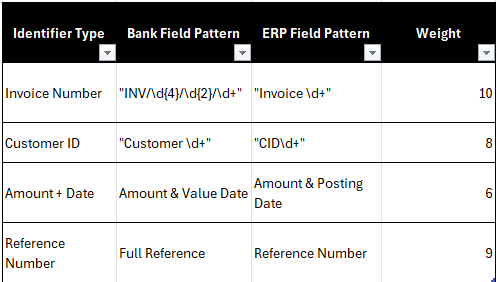
- Create a “Transaction Identifier Template” to help with matching logic:
Data Preparation Best Practices
- Consistency is key: Ensure your bank statement imports follow the same structure daily
- Handle special characters: Remove or replace special characters that might cause matching issues
- Date standardization: Convert all dates to a standard format (YYYY-MM-DD)
- Amount formatting: Standardize decimal places and thousand separators
- Create backups: Always save original files before transformation
- Documentation: Keep a log of all format changes from your banks
Common Data Preparation Challenges
Challenge 1: Inconsistent Bank References
Banks often change reference formats or include varying information. Create a “reference normalization” step that:
- Removes common prefixes/suffixes
- Standardizes spaces and separators
- Extracts key identifiers like invoice numbers
Challenge 2: Multiple Transactions in a Single Entry (Bulk)
Some banks book a whole payment file or a batch of collections as a single entry on the statement (batch booking). The detail is usually not in the description, so you cannot reliably split it from there. Instead:
- Ask the bank to include the transaction details in the camt.053 (the entry details section), or to send a camt.054 notification with the individual items
- If you send the payment file yourself, match the single statement entry to the total of that file, using the file or batch reference
- Only fall back to parsing the description if the bank genuinely cannot provide the detail
Challenge 3: Character Encoding Issues
International banks may use different character encodings:
- Specify the encoding the bank actually uses when importing. camt.053 is usually UTF-8, while MT940 and CSV files often come in other encodings such as Windows 1252
- Create replacement rules for problematic characters
- Document special characters that require handling
Next Steps
In Part 2 of this series, we build the automation logic that will:
- Create matching rules based on transaction patterns
- Develop a scoring system for potential matches
- Build the processing engine with Excel formulas
- Implement a self-learning system to improve matching over time
Data Preparation Checklist
- Identify all bank statement formats you receive
- Create mapping profiles for each format
- Build Power Query templates for transformation
- Create standardized ERP data export procedures
- Set up your reconciliation database structure
- Document special cases and exceptions
- Train your team on the new data preparation process
Next: Part 2, building the automation logic that drives your bank reconciliation process.