Episode 3: How to Build a Treasury Bot for Investment Tracking Without Coding

In treasury, tracking investments efficiently is crucial but often involves manual work in Excel or outdated systems. This guide shows you step-by-step how to create a Treasury Bot for investment tracking—without coding or IT support—using Power Automate, Excel Online, Microsoft Teams, and Power BI for real-time analytics, integrating features from a Treasury Management System (TMS).
Tools You’ll Need
- Microsoft Power Automate: A no-code automation tool that connects apps and services.
- Microsoft Excel/Google Sheets: For data management.
- Microsoft Power BI: For data visualization and reporting.
Step 1: Define Your Investment Tracking Needs
Before automating, list what you need to track:
- Investment types (bonds, deposits, MMFs, FX deals, derivatives, structured products, etc.)
- Maturity dates
- Interest rates and yields
- Counterparties
- Cash flows (inflows/outflows)
- Market benchmarks and deviation tracking
- Risk exposure and hedging status
- Settlement Instructions and counterparties’ payment preferences
- Compounded interest rate tools (Lookback, Lag days, Spread adjustments)
Your goal is to ensure the bot provides dynamic real-time tracking, risk alerts, and comprehensive reports.
Step 2: Setting Up Your Data Source
Organize your investment data in an Excel or Google Sheets spreadsheet. This should include:
| Investment Type | Amount | Interest Rate | Start Date | Maturity Date | Settlement Instructions |
|---|---|---|---|---|---|
| Money Market | 10,000 | 3% | 01/01/2025 | 01/02/2025 | Bank Transfer |
This file will be the core of your bot, automatically updated with market rates and new deals.
Step 3: Automate Investment Tracking with Power Automate
1. Creating the Bot with Microsoft Power Automate
- Sign in to Power Automate and go to “Create”.
- Choose Automated Flow.
2. Set Up Triggers and Actions
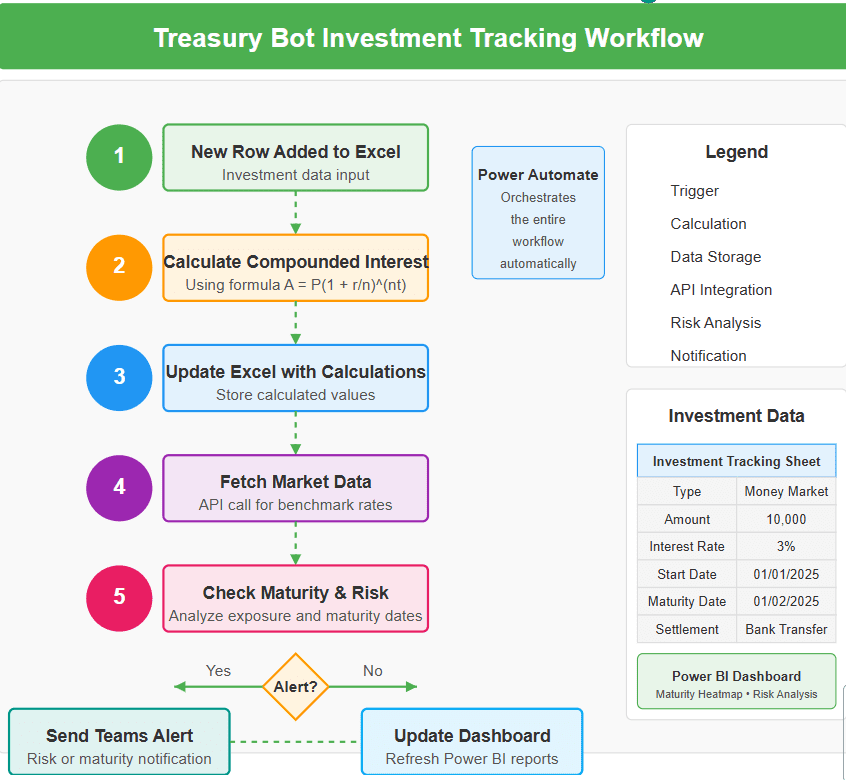
- Trigger: “When a new row is added to Excel” (or Google Sheets).
- Action 1: Calculate compounded interest using predefined formulas.
- Action 2: Update Excel with calculated values.
- Action 3: Send a notification email.
3. Fetch Market Data for Comparison
- Integrate an API like Alpha Vantage or Bloomberg Data Feed using the HTTP Request action in Power Automate and create a step. If not available, you may skip this step and you’ll need to manually feed with market data.
- Compare investment rates against market rates using the “Condition” action.
- If a deviation exceeds a set threshold (e.g., 0.5%), trigger an alert.
4. Incorporating Compounded Interest Rate Calculations
- Formula: Use Excel’s formula to calculate compounded interest.Formula: A = P(1 + r/n)^(nt)Where:
- A = amount of money accumulated
- P = principal amount
- r = annual interest rate
- n = number of times interest applied per time period
- t = time periods elapsed
- Automation: Use Power Automate to automate these calculations whenever new data is added.
5. Risk Exposure Alerts & Hedging Suggestions
- Implement “Condition” actions to check if exposure exceeds a predefined limit.
- If exceeded, trigger a Teams Message with recommended hedging actions.
- Example: “FX Exposure on EUR/USD exceeds 5M. Consider a forward contract hedge.”
6. Managing Deal Rollovers
- Rollover Logic: Define criteria for deal rollovers (e.g., maturity dates).
- Automate Rollovers: Use Power Automate to trigger actions for deal rollovers.
- Set conditions based on maturity dates.
- Update records and notify relevant parties.
7. Handling Settlement Instructions
- Define Instructions: Clearly define settlement instructions in your data source (Excel)
- Automate Settlements: Use Power Automate to concatenate SSI and your database, generate an XML file with payments for maturing deal.
- Example Flow:
- Trigger: Maturity date reached.
- Action 1: Extract settlement data from Excel.
- Action 2: Extract maturing deals from database.
- Action 3: Generate XML
- Action 4: Notify treasury team and send the payment file.
8. Send Alerts in Microsoft Teams and Email
- Add the “Post message in a chat or channel” action for Teams.
- Choose your Treasury team/channel.
- Write a message like: “Reminder: The following investments are maturing soon: [list of deals]. Review hedging strategy as needed.”
- Alternatively, use the “Send an email (Outlook)” action for email notifications.
Step 4: Automate Advanced Investment Reports in Power BI
To create real-time dashboards:
- Use the “Refresh a dataset” action in Power Automate to trigger Power BI updates.
- Design Power BI visuals:
- Investment Maturity Heatmap
- Market Rate vs. Investment Rate Comparison
- Exposure Risk Dashboard
- Compounded Interest Rate Analysis Panel
- Embed reports in Microsoft Teams for easy access.
Step 5: Enable User-Friendly Investment Updates
To allow non-technical users to update investments:
- Use Microsoft Forms for easy data entry.
- Create a Power Automate Flow that adds form responses to Excel automatically.
- Add a PowerApps Interface for direct data input and analytics access.
- Enable Deal Rollovers and Settlement Instruction Customization through interactive PowerApps components.
Results & Benefits
✅ No more manual tracking – The bot ensures real-time updates. ✅ Market-aware decisions – Compare against benchmarks instantly. ✅ Proactive risk management – Alerts and hedging suggestions. ✅ Custom settlement instructions – Automate SSI updates based on counterparties. ✅ Compounded interest calculations – Precision in investment profitability. ✅ No IT required – You control the process within Treasury. ✅ Seamless reporting – Automated Power BI dashboards keep management informed.
This Treasury Bot goes beyond simple tracking—it enhances investment decision-making with automation and analytics, incorporating TMS functionalities like compounded interest tools, deal rollovers, and settlement management. Try it and elevate your treasury operations today!